Google Excel (Google Sheets) Complete Guide: Beginner to Advanced Tips, Tricks and Shortcuts
Learn how to master Google Sheets (Google Excel) with this complete guide! From beginner to advanced, discover essential formulas, shortcuts, tips, tricks, and time-saving hacks. Organize data, automate tasks, create charts, and collaborate effortlessly. Perfect for students, freelancers, and business owners who want to boost productivity and work smarter.
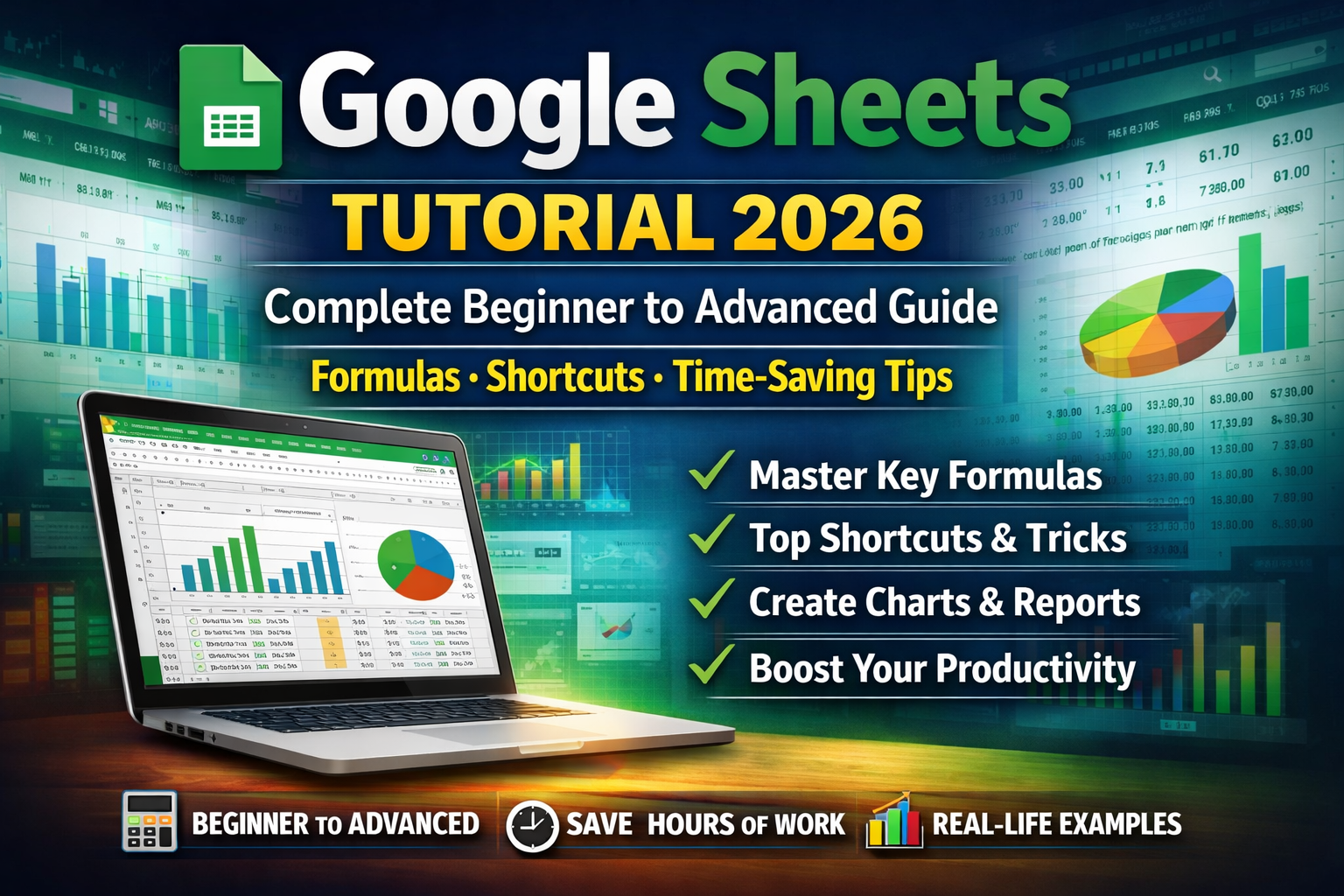
Google Excel (Google Sheets) Complete Guide: Beginner to Advanced Tips, Tricks and Shortcuts
What is Google Sheets?
- Create and edit spreadsheets
- Share with others and collaborate in real-time
- Use formulas to calculate numbers automatically
- Make charts, track data, and automate tasks
- Free and easy to access anywhere
- Real-time collaboration with your team
- Version history lets you undo mistakes
- Works on computers, tablets, and phones
Why Use Google Sheets?
- Save Time: Automate calculations and repetitive work.
- Work Anywhere: Access from any device with internet.
- Collaborate Easily: Multiple people can work on the same sheet.
- Organize Data: Keep your projects, budgets, and schedules in one place.
- Security: Your data is stored on Google Drive and can be shared safely.
Getting Started: A Simple Beginner Guide
- Go to sheets.google.com and click Blank to start a new sheet.
- Rows: Horizontal lines numbered 1,2,3…
- Columns: Vertical lines labeled A,B,C…
- Cells: Each box is a cell where you can type numbers, text, or formulas
- Type numbers or text in any cell
- Click a cell and drag to select multiple cells
- Use bold, color, or alignment from the toolbar
Essential Formulas Everyone Should Know
- SUM: =SUM(A1:A10) → Adds all numbers from A1 to A10
- AVERAGE: =AVERAGE(B1:B10) → Finds the average of numbers in B1 to B10
- IF Statement: =IF(C1>50,"Pass","Fail") → Shows "Pass" if value >50, else "Fail"
- VLOOKUP: =VLOOKUP(101,A2:C10,3,FALSE) → Finds data for ID 101 in a table
- COUNTIF: =COUNTIF(A1:A20,">50") → Counts how many cells have values greater than 50
- TODAY: =TODAY() → Shows today’s date
- NOW: =NOW() → Shows current date and time
- CONCAT / CONCATENATE: =CONCAT(A1," ",B1) → Combines text from multiple cells
Useful Shortcuts & Tricks
- Ctrl + C → Copy
- Ctrl + V → Paste
- Ctrl + X → Cut
- Ctrl + Z → Undo
- Ctrl + Y → Redo
- Ctrl + Shift + V → Paste values only (removes formulas)
- Ctrl + Arrow → Jump to the last cell in a row or column
- Ctrl + Space → Select entire column
- Shift + Space → Select entire row
- Alt + Shift + 5 → Strikethrough text
- Ctrl + Shift + L → Add/remove filters
Practical Tips & Tricks
- Freeze Rows/Columns: Keep headers visible by clicking View → Freeze → 1 Row / 1 Column
- Split Text to Columns: Useful for CSV files or lists (Data → Split text to columns)
- Named Ranges: Makes formulas easier to read (Data → Named ranges)
- Filter Views: Create temporary filters without affecting others
- Conditional Formatting: Highlight cells automatically based on values (Format → Conditional formatting)
- Explore Tool: Click the Explore button to automatically suggest charts or formulas
- Quick Fill: Use Ctrl + D to copy values down or Ctrl + R to copy values to the right
- Data Validation: Restrict inputs to numbers, dates, or dropdowns (Data → Data validation)
Advanced Features That Beginners Should Know
- Pivot Tables: Summarize large datasets quickly (e.g., track monthly sales by product category)
- Import Data from Other Sheets: Use IMPORTRANGE to combine multiple sheets into one
- Google Apps Script: Automate tasks with simple scripts (e.g., send email reminders automatically)
- Charts and Dashboards: Visualize data with bar, pie, or line charts for quick insights
Real-Life Applications
- Track assignments, grades, and attendance
- Create GPA calculators
- Track clients, invoices, and project deadlines
- Automate reminders using scripts
- Track sales, inventory, budgets, and expenses
- Build dashboards for real-time insights
Other People’s Experiences:
- Common Mistakes to Avoid
- Using complex formulas before mastering basics
- Not using Google Sheets collaboration features
- Forgetting to validate data inputs
- Ignoring version history
FAQs About Google Sheets
Final Tips to Become a Google Sheets Pro
- Practice every day with real projects
- Learn one new formula or shortcut each week
- Explore conditional formatting and pivot tables early
- Use filter views for team projects to avoid mistakes
- Don’t be afraid to experiment—Google Sheets allows undo and version history

Comments (0)
Leave a comment
No comments yet. Be the first to share your thoughts!
About the Author

A passionate and creative content writer with over one year of experience at Fount Beyond, specializing in engaging, informative, and research driven articles. Skilled at turning ideas into compelling content that informs, inspires, and connects with readers. Always eager to explore new topics, bring fresh perspectives, and grow as a writer.